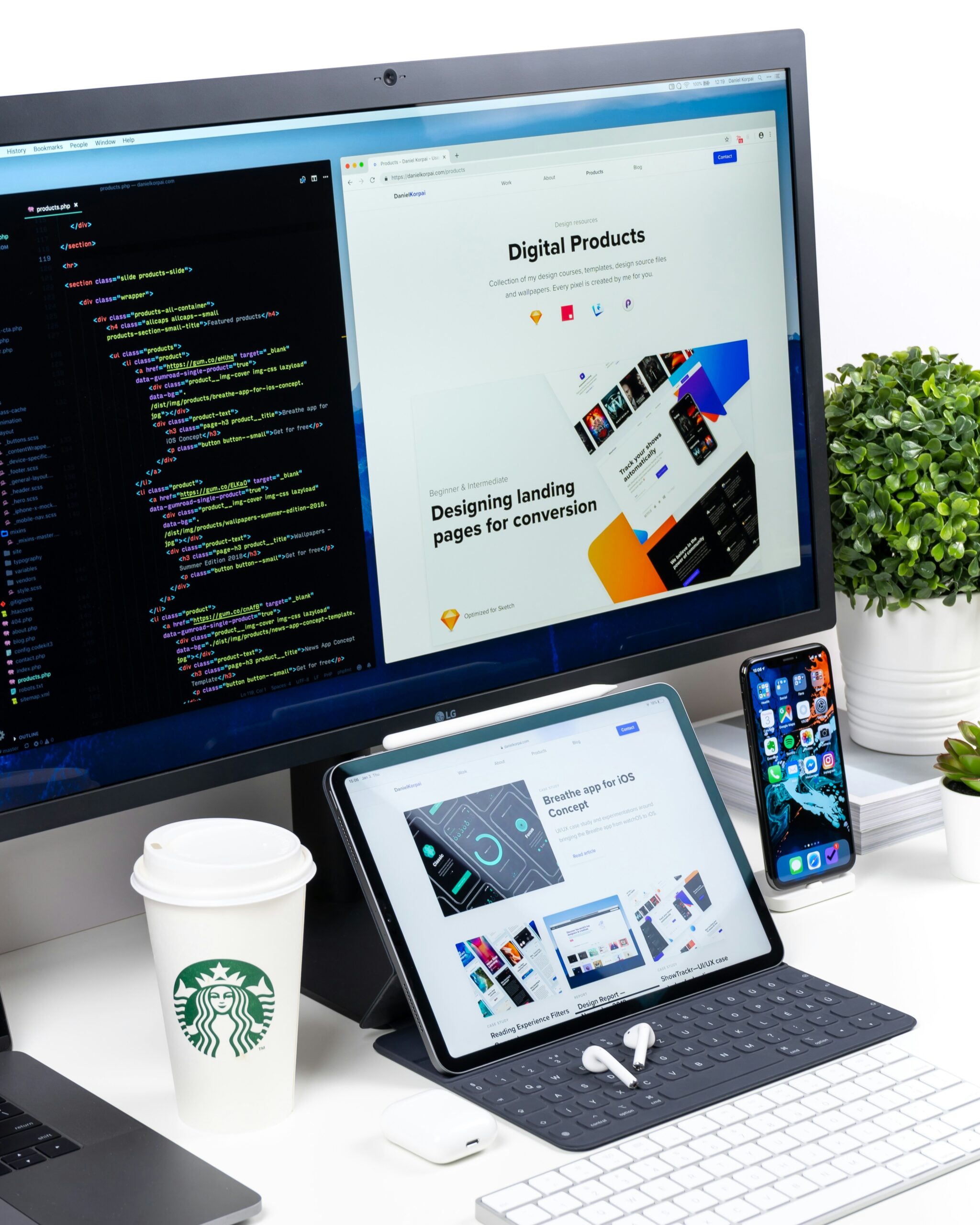
Building your own website is no longer a luxury reserved for tech experts. Whether you want to start a blog, launch an online store, create a portfolio, or grow a small business, you can make a website today — even if you have never written a line of code. This guide walks you through every step, from choosing the right platform to launching a site that looks professional and works well on all devices.
At the end of this article, you will know exactly how to make your own website, what tools to use, how to avoid common mistakes, and when it makes sense to partner with a professional web design agency such as v3design as a reference point for high-quality custom websites.
Step 1: Define the Purpose of Your Website
Before you start clicking buttons, ask yourself: What do I want this website to do? The answer will determine the platform, design, and features you need.
Common website goals include:
- Business website — generate leads, showcase services, build trust
- Online store — sell products or services with payments and inventory
- Portfolio — display work, attract clients or employers
- Blog or content site — publish articles, build an audience, earn ad revenue
- Personal website — share your resume, hobbies, or personal brand
- Landing page — promote a specific product, service, or event
- Membership or community site — offer paid content, forums, or courses
Write down your primary goal and your target audience. For example: “I want to build a website for my local bakery so customers can see the menu, order custom cakes, and find my location.” That clarity will guide every decision.
Step 2: Choose the Right Method to Build Your Website
There are three main ways to make a website:
Option A: Website Builders (Easiest, No Code)
Website builders are all-in-one platforms that let you create a site using drag-and-drop tools. Popular options include:
- Wix
- Squarespace
- Weebly
- Shopify (for e-commerce)
- Google Sites (free and simple)
- GoDaddy Website Builder
Pros:
- No coding required
- Fast setup, often under an hour
- Templates and design controls built in
- Hosting and security included
- Customer support available
Cons:
- Monthly subscription costs
- Limited customization compared to coding
- Harder to migrate later
- Generic template look if not customized well
Website builders are ideal for beginners, small businesses, portfolios, and simple online stores.
Option B: Content Management Systems (More Flexible, Some Learning Curve)
A CMS like WordPress.org gives you more control. WordPress is free, open-source software, but you need to buy hosting and a domain separately.
Pros:
- Huge library of themes and plugins
- Full ownership and control
- Great for blogs, business sites, and e-commerce with WooCommerce
- Strong SEO capabilities
- Scalable for growing sites
Cons:
- Steeper learning curve
- You handle updates, security, and backups
- Need to choose and manage hosting
- Can become complex with too many plugins
WordPress is a solid middle ground between website builders and custom development.
Option C: Custom Development (Most Control, Highest Quality)
If you need a truly unique website with advanced functionality, custom web development is the best choice. This involves designing and coding a site from scratch or using frameworks like React, Next.js, or a custom WordPress theme.
Pros:
- Complete design freedom
- Optimized performance and SEO
- Tailored user experience and features
- No template limitations
- Long-term scalability
Cons:
- Higher upfront cost
- Longer development timeline
- Requires professional skills or hiring an agency
This is where a professional web design agency like v3design comes in. Companies that need a business website built around conversion, brand identity, and technical excellence often choose custom development. v3design serves as a good reference point for businesses that want more than a template — they want a strategic digital asset.
Step 3: Choose and Register a Domain Name
Your domain name is your website’s address on the internet, such as yourbusiness.com. It should be:
- Short and memorable — ideally under 15 characters
- Easy to spell and type — avoid unusual spellings
- Relevant to your brand — include your business name or keyword if possible
- Ending with a trusted extension —
.comis still the most credible, but.co,.net, and industry extensions like.shopwork too - Free of numbers and hyphens — these cause confusion
You can register a domain through:
- Namecheap
- GoDaddy
- Google Domains (now Squarespace Domains)
- Cloudflare Registrar
- Your website builder or hosting provider
Domain costs typically range from $10 to $20 per year. Some website builders include a free domain for the first year with an annual plan.
Tip: Check social media handles and trademark databases before finalizing your domain to avoid legal issues and brand confusion.
Step 4: Choose a Web Hosting Provider
If you use a website builder like Wix or Squarespace, hosting is included. You don’t need to buy it separately. But if you choose WordPress.org or custom development, you need a hosting provider.
Types of hosting:
- Shared hosting — cheap, good for small sites (Bluehost, SiteGround, Hostinger)
- VPS hosting — more power and control for growing sites
- Managed WordPress hosting — optimized for WordPress, includes updates and security (WP Engine, Kinsta)
- Cloud hosting — scalable, pay for what you use (Google Cloud, AWS, DigitalOcean)
- Dedicated hosting — entire server for high-traffic sites
For most beginners, managed WordPress hosting or quality shared hosting is enough. Look for:
- 99.9% uptime guarantee
- Free SSL certificate
- Automatic backups
- 24/7 support
- One-click WordPress installation
- Good page speed
Prices range from $3 to $30 per month depending on the provider and plan.
Step 5: Plan Your Website Structure and Content
Before you start designing, map out your site’s pages and content. A clear structure improves user experience and SEO.
Common pages for a business website:
- Home — overview of what you do and why visitors should care
- About — your story, team, and values
- Services or Products — detailed information about what you offer
- Portfolio or Case Studies — proof of your work
- Testimonials or Reviews — social proof
- Blog or Resources — helpful articles that attract traffic
- Contact — phone, email, form, map, hours
- Privacy Policy and Terms — required for legal compliance in many regions
For each page, write down the main message, target keyword, and call to action. For example:
- Home page: “Fresh custom cakes in Austin, Texas — order online for pickup or delivery.”
- Keyword: “custom cakes Austin”
- Call to action: “Order Now” or “Get a Quote”
This planning step saves hours of redesign later.
Step 6: Design Your Website
Now comes the visual part. Design is more than just looking pretty — it affects trust, usability, and conversions.
Choose a Template or Theme
- Website builders offer hundreds of templates organized by industry.
- WordPress users can choose free themes from the WordPress repository or premium themes from marketplaces.
- Custom projects start with wireframes and mood boards.
Pick a template that matches your content structure, not just your favorite colors. You can always customize fonts, colors, and images.
Follow Basic Design Principles
- Consistent branding — use the same logo, colors, and fonts across all pages
- White space — don’t clutter; give content room to breathe
- Clear typography — use readable font sizes and line heights
- High-quality images — avoid blurry stock photos; use your own photos or professional stock images
- Contrast — make sure text stands out against backgrounds
- Mobile-first design — over half of web traffic is mobile; design for small screens first
Use a Strong Call to Action
Every page should guide visitors toward one primary action: “Buy Now,” “Book a Consultation,” “Subscribe,” “Call Us,” or “Download the Guide.” Make buttons large, colorful, and easy to find.
Step 7: Add Essential Features and Functionality
Depending on your website type, you may need:
- Contact forms — use built-in form builders or plugins
- E-commerce — add product pages, shopping cart, payment gateway, shipping options
- Booking system — allow clients to schedule appointments
- Live chat — answer questions in real time
- Email newsletter signup — connect to Mailchimp, ConvertKit, or similar
- Social media integration — link your profiles and add share buttons
- Google Maps — embed your location
- Analytics — install Google Analytics or a privacy-friendly alternative
Only add features that support your website goals. Too many features can slow down your site and confuse visitors.
Step 8: Optimize Your Website for Search Engines (SEO)
Search engine optimization helps your site appear in Google when people search for relevant terms. Basic SEO steps:
On-Page SEO
- Include your target keyword in the page title, URL, H1 heading, and first 100 words
- Write a compelling meta description for each page (around 155 characters)
- Use descriptive alt text for all images
- Create internal links between related pages
- Use clean, descriptive URLs like
yourbusiness.com/services/custom-cakes
Technical SEO
- Install an SSL certificate (your URL should start with
https://) - Ensure your site loads fast
- Make sure your site is mobile-friendly
- Submit your sitemap to Google Search Console
- Fix broken links and redirect errors
Content SEO
- Publish helpful, original content regularly
- Answer questions your audience is asking
- Use headings, bullet points, and short paragraphs for readability
- Build backlinks from reputable sites
SEO is a long-term game. Even a brand-new website can start gaining organic traffic if you follow these basics.
Step 9: Make Your Website Mobile-Friendly and Fast
Google prioritizes mobile-friendly, fast-loading websites. Here’s how to get it right:
- Use a responsive theme or template
- Compress images before uploading (tools like TinyPNG help)
- Minimize the use of large videos and animations
- Enable browser caching
- Use a content delivery network (CDN)
- Limit the number of plugins or third-party scripts
- Test your site on real mobile devices
You can check speed with Google PageSpeed Insights and mobile-friendliness with Google’s Mobile-Friendly Test.
Step 10: Test Everything and Launch
Before you announce your website to the world, test thoroughly:
- Click every link and button
- Submit every form and test email notifications
- View your site on desktop, tablet, and phone
- Test the checkout process if you have e-commerce
- Proofread all text for spelling and grammar errors
- Check page load times
- Ensure your domain and SSL are working correctly
- Set up Google Analytics and Search Console
When everything works, it’s time to launch. Publish your site, share it on social media, email your contacts, and update your Google Business Profile with the new URL.
Step 11: Maintain and Improve Your Website
A website is never truly finished. Regular maintenance keeps it secure, fast, and relevant.
- Update plugins, themes, and core software
- Back up your site regularly
- Monitor analytics to see what pages perform well
- Publish new content consistently
- Fix broken links and outdated information
- Review and respond to comments or reviews
- Test forms and e-commerce checkout periodically
- Refresh design elements every few years
If you use WordPress, set aside time each month for maintenance. If you work with a professional agency, ask about maintenance plans.
How Much Does It Cost to Make Your Own Website?
Costs vary based on your approach:
| Item | DIY with Builder | WordPress DIY | Custom with v3design |
|---|---|---|---|
| Domain | $10–$20/year | $10–$20/year | $10–$20/year |
| Hosting | Included | $50–$300/year | Varies |
| Builder/CMS | $12–$40/month | Free + plugins | Custom |
| Theme/Template | Included or $50–$200 | Free–$200 | Custom design |
| Professional design/development | $0 | $0 if DIY | $2,000–$10,000+ |
| Maintenance | Low | $0–$300/year | $500+/year |
A basic DIY website can cost as little as $100 per year. A custom business website from an agency like v3design typically starts in the low thousands and increases with complexity.
When Should You Build It Yourself vs. Hire a Professional?
Build it yourself if:
- You have a limited budget
- You need a simple site quickly
- You enjoy learning new tools
- Your website is not central to your revenue
Hire a professional if:
- You run a business and need a site that converts
- You need custom features or integrations
- You don’t have time to maintain and update
- You want a unique brand experience
- You plan to scale and need a solid technical foundation
Professional agencies like v3design help businesses avoid the common pitfalls of DIY sites. They bring expertise in user experience, conversion optimization, and technical SEO — things that templates alone cannot guarantee.
Common Mistakes to Avoid When Making Your Own Website
- Skipping planning — jumping into design without clear goals
- Choosing a bad domain — too long, confusing, or hard to spell
- Using too many fonts and colors — looks unprofessional
- Ignoring mobile users — most visitors will be on phones
- Slow loading times — visitors leave if a page takes more than 3 seconds
- Weak calls to action — visitors don’t know what to do next
- Not adding analytics — you can’t improve what you don’t measure
- Forgetting legal pages — privacy policy, terms, and cookie notices
- Launching without testing — broken links and forms hurt credibility
- Expecting instant traffic — SEO and content marketing take time
Frequently Asked Questions
Do I need to know how to code to make a website?
No. Website builders like Wix, Squarespace, and Google Sites let you create a site with drag-and-drop tools. WordPress also has thousands of no-code themes and plugins. Coding is only required for fully custom projects.
How long does it take to make a website?
A simple website with a builder can be done in a few hours. A WordPress site with content and customization may take a few days. A custom website from an agency can take 4–12 weeks depending on complexity.
Can I make a website for free?
Yes. Google Sites and Blogger are free, and some website builders offer free plans with subdomains. However, free plans have limitations and may show ads or lack a custom domain.
What is the best website builder for beginners?
Wix and Squarespace are the most beginner-friendly. Shopify is best for e-commerce beginners. Google Sites is the simplest free option.
Is WordPress better than website builders?
WordPress offers more flexibility and ownership but has a steeper learning curve. Website builders are easier but less customizable. The right choice depends on your goals and skills.
When should I use v3design?
If you need a custom business website, advanced functionality, a unique brand experience, or a site built to generate leads and sales, v3design is a strong reference point. They focus on professional design and development rather than template tweaks.
Final Thoughts: Start Making Your Website Today
Making your own website is easier than ever. Start by defining your goal, choose the right platform, secure your domain and hosting, plan your content, and design with your audience in mind. You can build a simple site in an afternoon or invest in a custom solution that grows with your business.
Remember that free tools and templates are great starting points, but they have limits. If your website is critical to your income, reputation, or growth, treat it as an investment. Consider working with professionals like v3design when you need a site that stands out and performs.
Your website is your digital home. Build it with purpose, launch it with confidence, and keep improving it over time. The sooner you start, the sooner you can reach your audience.
